

Accessibility testing is where theory meets reality.
You can follow every best practice, but until you test your site like a real user, you don’t really know how accessible it is.
You can follow every best practice, but until you test your site like a real user, you don’t really know how accessible it is.
In WordPress, accessibility testing should focus on four practical areas:
No certifications, no jargon — just things you can start doing today.
Accessibility Testing in WordPress: How to Test Your Site Properly
Table of Contents
How to Run a Keyboard Navigation Test (The First Reality Check)
If your site doesn’t work with a keyboard, it’s not accessible.
The good news? Testing this is brutally simple.
The good news? Testing this is brutally simple.
How to do it
- Open your site in a desktop browser
- Put the mouse away
- Use only:
- Tab → move forward
- Shift + Tab → move backward
- Enter → activate links/buttons
- Esc → close menus or modals
What to look for
Common WordPress failures
If you get stuck, lost, or confused — your users will too.
How to Read a Lighthouse Accessibility Report (Without Obsessing)
Lighthouse is great, but many developers use it the wrong way.
How to run it
How to interpret the score
The score is a signal, not a verdict.
Let’s clarify this point.
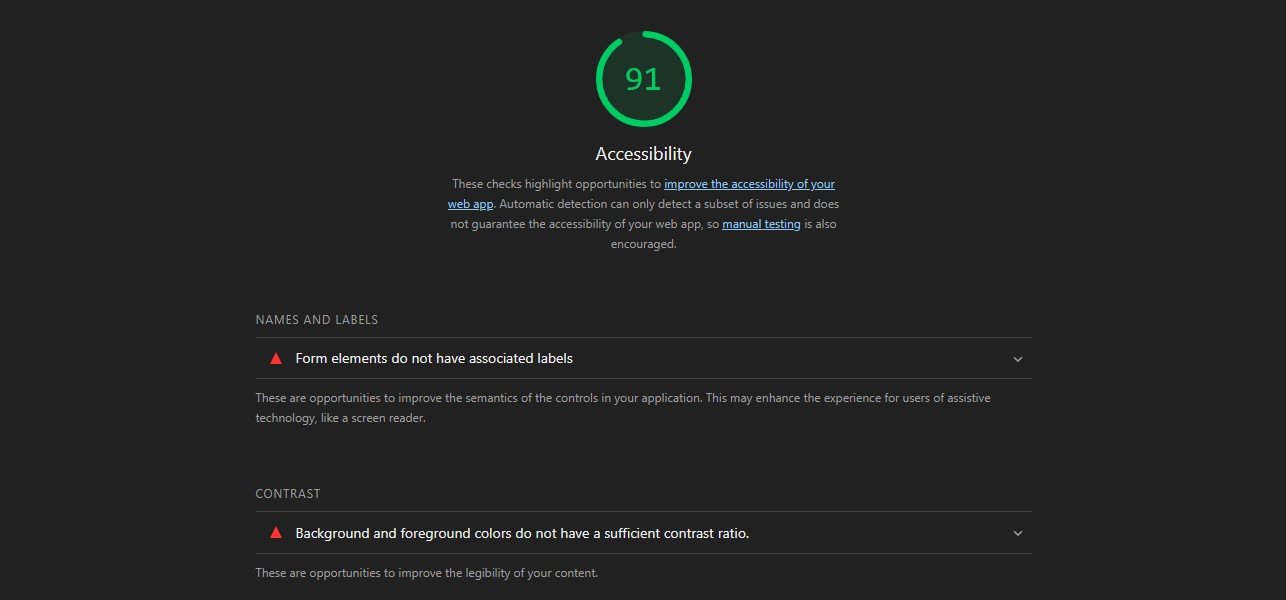
In the screenshot above, Lighthouse reports a red warning about form labels:
“Form elements do not have associated labels.”
At first glance, this looks confusing.
If you inspect the page source, you can see that the comment textarea does have the expected
So why does Lighthouse report a missing label?
WordPress uses a honeypot technique in its comment form to reduce spam.
The visible textarea initially receives a random ID, while the real
After the page loads, JavaScript swaps the IDs so the label points to the correct field at runtime.
Automated tools like Lighthouse analyze the static DOM, before JavaScript runs.
As a result, they may report missing labels even though the form works correctly for real users.
This is a good example of why automated accessibility tools should inform decisions, not replace manual testing.
Let’s clarify this point.
In the screenshot above, Lighthouse reports a red warning about form labels:
“Form elements do not have associated labels.”
At first glance, this looks confusing.
If you inspect the page source, you can see that the comment textarea does have the expected
id="comment".So why does Lighthouse report a missing label?
WordPress uses a honeypot technique in its comment form to reduce spam.
The visible textarea initially receives a random ID, while the real
comment field is hidden.After the page loads, JavaScript swaps the IDs so the label points to the correct field at runtime.
Automated tools like Lighthouse analyze the static DOM, before JavaScript runs.
As a result, they may report missing labels even though the form works correctly for real users.
This is a good example of why automated accessibility tools should inform decisions, not replace manual testing.
What Lighthouse is good at
What it doesn’t catch
👉 Use Lighthouse to find problems, not to prove you’re “done”.
WAVE is excellent because it shows problems directly on the page.
How to Use WAVE for accessibility testing (Visual, Brutally Honest)
How to use it
What makes WAVE useful
- Visual overlays show:
- Missing headings
- Empty links
- Redundant ARIA
- Contrast errors
- You immediately see where the issue lives
How to not use it
How to Test with a Real Screen Reader (Yes, You Should)
This is the part most developers skip — and the most eye-opening one.
Easiest options
What to test
Reality check
You don’t need to become a screen reader expert.
Just 10 minutes of testing will reveal issues no tool ever shows.
And yes — the first time feels uncomfortable. That’s normal.
Just 10 minutes of testing will reveal issues no tool ever shows.
And yes — the first time feels uncomfortable. That’s normal.
🧠 Accessibility Testing Is a Process, Not a Phase
In WordPress, accessibility breaks easily:
The goal is not perfection.
The goal is awareness + continuous testing.
Even basic checks done regularly are better than a perfect audit done once and forgotten.
The goal is awareness + continuous testing.
Even basic checks done regularly are better than a perfect audit done once and forgotten.
🔗 This article is part of a broader guide on the most critical accessibility areas in WordPress: 6 Expert Techniques to Enhance Accessibility in WordPress
Leave a Reply